Social Media Image Sizes for 2026: Instagram, Threads and X
Published 2026-09-29
The same photo can look very different depending on where you post it. Each platform displays images at a fixed set of aspect ratios, and anything outside those ratios gets cropped automatically or padded with empty space. Cut-off heads in portraits and missing words at the edge of a graphic almost always come from this mismatch.
This guide summarizes the recommended ratios and sizes for Instagram, Threads and X as of 2026, and explains why it pays to crop your images yourself before uploading.
Recommended sizes at a glance
| Platform / placement | Ratio | Size (px) |
|---|---|---|
| Instagram feed, portrait | 4:5 | 1080 × 1350 |
| Instagram feed, grid-matched portrait | 3:4 | 1080 × 1440 |
| Instagram feed, square | 1:1 | 1080 × 1080 |
| Instagram Stories and Reels | 9:16 | 1080 × 1920 |
| Threads, square | 1:1 | 1080 × 1080 |
| Threads, portrait | 3:4 | 1080 × 1440 |
| X, landscape | 16:9 | 1600 × 900 |
| X, square | 1:1 | 1080 × 1080 |
You do not need to memorize the pixel counts. As long as the ratio is right, the platform scales the image for you. Anything 1080px wide or larger looks sharp on almost every phone.
Instagram: 4:5 for the feed, 9:16 for Stories
The 4:5 portrait ratio takes up the most room in the Instagram feed. It fills more of the screen than a square, so it holds attention longer while people scroll. Unless you have a specific reason not to, 4:5 at 1080 × 1350px is the safest default for feed posts.
Instagram's profile grid now previews posts at 3:4, and the feed also accepts 3:4 images at 1080 × 1440px. Use 3:4 if you want your profile grid filled edge to edge. Square posts lose a little on each side in the grid preview, so keep the main subject near the center.
Stories and Reels use the full phone screen at 9:16 (1080 × 1920px). The profile name and progress bar sit on top and the reply box sits at the bottom, so keep text and faces away from the top and bottom edges.
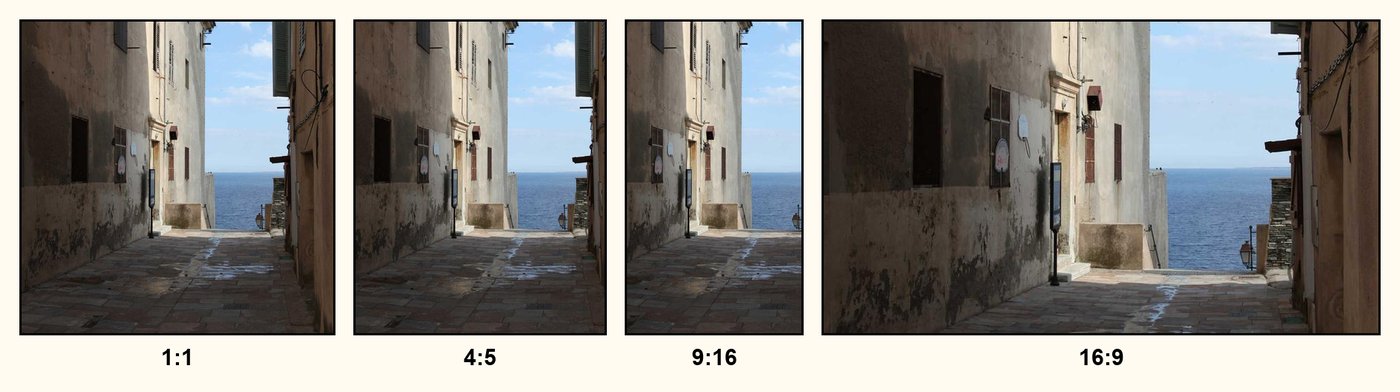
Threads: square or 3:4 portrait
Threads shows images under your text, so wide landscape photos end up small on screen. Square (1:1) and 3:4 portrait images appear largest and cleanest. When you attach several images they sit side by side in a swipeable row, and keeping every image at the same ratio stops the heights from jumping around.
X: 16:9 for a single image, center your subject for several
The X timeline shows 16:9 landscape images (1600 × 900px) uncropped. Tall images are accepted, but the timeline preview only shows part of them until someone taps to open the full image.
When you post two to four images together, the timeline splits them into a grid and crops the center of each image to fit its cell. Put the key subject in the middle, or crop to square beforehand, so the important part survives.
Why crop before you upload
- Automatic crops are centered, which may not match the composition you want. Cropping yourself lets you decide what stays in frame.
- In a multi-image post, mismatched ratios get forced to match the first image. Cropping everything to the same ratio avoids surprise cuts.
- Very large files are recompressed on upload, which can soften detail. Resizing to a sensible size first reduces that extra compression.
How to do it in prezll
- Drag a photo onto the prezll home page, or click to upload.
- Open the Crop tool and pick a preset such as Instagram 4:5, Story 9:16, Threads 3:4 or X 16:9.
- Drag the crop frame over the part you want to keep. The horizontal and vertical centering buttons snap it to the exact center.
- If needed, use Resize to scale the image to 1080px wide or any size you like, then download.
Your photo is never sent to a server. Everything runs inside your browser. If you need Instagram 3:4, the Threads 3:4 preset gives you exactly the same ratio.
Crop an image nowMore guides
- 5 Ways to Reduce GIF File Size Without Ruining Quality
- How to Hide Personal Information in Photos: Mosaic vs. Blur
- JPG vs PNG vs WebP: Which Image Format Should You Use?